Server-side tagging sends your website’s tracking events to a server container you control, usually a Google Tag Manager server container on your own domain, and that server forwards them to GA4, Google Ads, Meta and other platforms. Use it when you send conversions to several ad platforms, need to control what each vendor receives, or want sturdier first-party measurement. Skip it for now if your browser tags are still unreliable, because a server only forwards what the browser sends.
What is server-side tagging?
In a standard client-side setup, the browser loads a separate script for each vendor, and each script sends its own data. GA4, the Google Ads tag and the Meta Pixel each collect what they collect, and you have limited say over it.
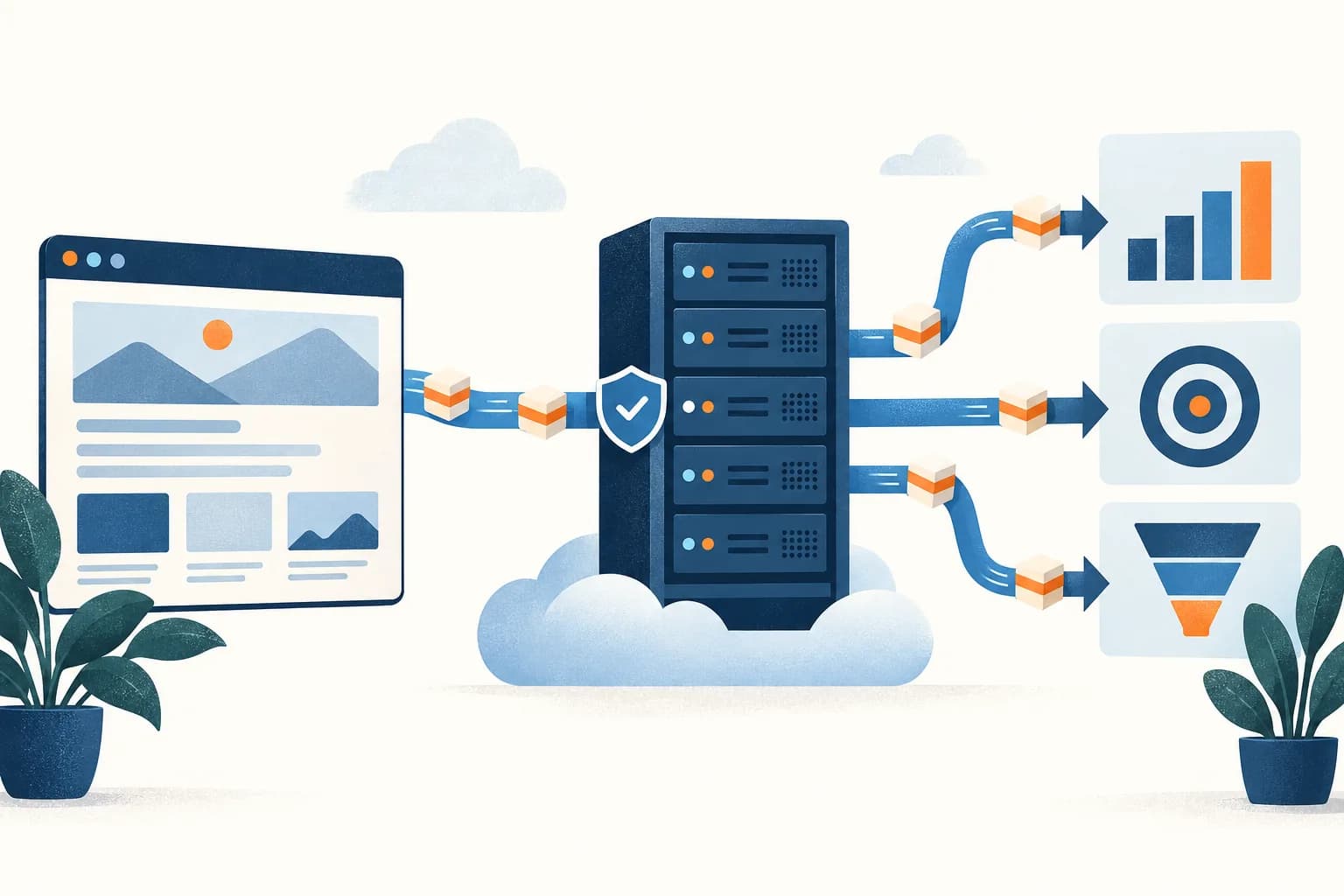
In a server-side setup, the browser sends one stream of events to a server container. Google describes the container’s clients as “adapters between the software running on a user’s device and your server container.” A client claims each incoming request and turns it into event data, and server tags forward that data to each destination. Google’s introduction to server-side tagging puts the main benefit plainly: you have “full control over how that data is shaped, and where it is routed from the server.”
You still keep a web container in the browser. It captures pageviews, form submits and purchases, and sends them to the server container instead of straight to every vendor.
“Server-side tracking” is often used for the same thing. It is a little broader: it also covers events your backend sends directly, such as a CRM or checkout system calling the Meta Conversions API or uploading offline conversions to Google Ads.
Client-side vs server-side tagging: what changes?
Server-side tagging trades a simpler setup for more control. Click through to see where the two differ in practice.
1 / 7
Server-side tracking architecture
Most setups have the same four layers. Each one is a place to check when something breaks.
- Browser. The web container or Google tag captures events and the consent state, and sends them to your tracking domain.
- Tracking domain. A path on your site or a subdomain such as
sgtm.example.comthat points to the server. This is what makes the data first-party. - Server container. Clients claim requests and turn them into event data. Tags, triggers and variables decide what goes where, and what each vendor sees.
- Destinations. GA4, Google Ads, the Meta Conversions API and other platform APIs. Backend systems such as a CRM can also send events straight to these APIs, outside the container.
When is server-side tagging worth it?
It tends to pay off when at least one of these is true:
- You send conversions to two or more ad platforms and want one place to control and check them.
- You need to keep certain fields away from certain vendors, for example in healthcare or finance.
- Meta or Google Ads bidding depends on conversion data, and you want the Conversions API and Google Ads tags running from a first-party endpoint.
- Your site has enough traffic that small losses in browser data change your reporting.
It is usually not the first fix. If events fire twice, forms do not send leads, or UTMs are missing, a server will forward those problems faithfully. Fix the browser layer first; our tracking QA checklist is a good place to start. If you work in a regulated industry, read healthcare marketing tracking without PHI before you route anything.
For a small site that runs GA4 and one ad platform, with browser tags that already report sensibly, the hosting cost and upkeep may outweigh the gain for now.
Before you start: what you need
- A Google Tag Manager web container that already works and fires the events you need.
- A new GTM container of type Server, with its container configuration copied out of GTM.
- A hosting option: Google Cloud Run, set up automatically or by hand, or a managed host such as Stape.
- Control of your site’s DNS, or its CDN or load balancer, so you can serve the server on your own domain, for example sgtm.example.com.
- A consent management platform (CMP) that sets the consent state before tags fire.
- Access to each destination: the GA4 property, Google Ads conversion actions, and the Meta, TikTok or LinkedIn accounts you plan to send to.
How do you set up server-side tracking?
The steps below follow Google’s server-side Tag Manager documentation. They assume you already have a working web container. In order:
- Create a server container in Google Tag Manager.
- Choose hosting: Cloud Run or a managed host.
- Map a custom tracking domain on your own site.
- Point the web tags at that domain.
- Route each destination with its own server tag.
- Keep consent in the browser and pass it to the server.
- Test the web and server containers together.
- Monitor the server and repeat your checks after changes.
1. Create a server container
In Google Tag Manager, create a new container and choose Server as the target platform. New server containers include Google Analytics 4 clients and tags, so GA4 requests have something to claim them from the start.
2. Choose hosting
Provision the container on Cloud Run, which Google recommends, or on a managed host such as Stape. Run at least two instances in production and add a preview server so GTM Preview works. The trade-offs are in where to host the server container below.
3. Map a custom tracking domain
Serve the server from your own site, as a same-origin path such as www.example.com/metrics or a subdomain such as sgtm.example.com. Do this before you go live, not after. The host’s default URL, such as a run.app address or a vendor subdomain, is only a fallback for testing. See use a custom tracking domain for the options.
4. Point the web tags at the server
In the web container, set the server container URL on your Google tag to your tracking domain, so GA4 requests go to your domain instead of Google’s. Google’s send data guide covers the setting for GTM and for gtag.js, and how to serve the Google tag script itself through the server container.
5. Route each destination
Add one server tag per destination, each with a trigger limited to the events it should send.
- GA4: the GA4 client claims requests from your Google tag, and a GA4 server tag forwards them to your property.
- Google Ads: Google’s Ads setup guide needs a Conversion Linker tag and a Google Ads Conversion Tracking tag with your conversion ID and label. Remarketing and Enhanced Conversions are optional extras with their own settings.
- Meta Conversions API: Meta publishes a Conversions API tag for server-side GTM that it writes and maintains. Customer details such as email and phone must be hashed (Meta’s examples use SHA-256), but
client_ip_address,client_user_agent,fbcandfbpmust not be, per Meta’s customer information parameters. - Other platforms, such as TikTok, LinkedIn, Pinterest, Snapchat and Reddit, through their own server tag templates or APIs. The destinations table below lists the IDs each one needs.
If the Meta Pixel still runs in the browser, deduplicate. Meta’s deduplication guide says the Pixel’s eventID must match the server’s event_id, and the event names must match too. Events are only deduplicated within 48 hours of the first one.
6. Keep consent in the browser
Google’s server-side consent guide says “you only need to set up consent mode in the web container.” The Google tag adds the visitor’s consent state to each request, and “Google product tags in the server are consent-aware.”
That guide covers Google tags only; it does not say how non-Google server tags handle consent. Our recommendation, not Google’s: do not assume a tag such as the Meta Conversions API tag reads the consent state on its own. Add a consent condition to its trigger and test it with consent declined. Consent mode itself, including the difference between basic and advanced mode, is covered in Google’s consent mode overview.
7. Test both containers together
Run GTM Preview on the web and server containers at the same time. In the server preview, Google’s debug guide shows the client that claimed each request, the outgoing requests to each vendor and their responses, and which tags fired or did not fire. Then check GA4 DebugView, Google Ads conversion status and Meta Events Manager’s Test Events, with consent accepted and with consent declined.
8. Monitor and maintain
Watch server errors and instance health, and repeat a short regression check after every site, consent or integration change. The maintenance checklist below lists what to cover.
Use a custom tracking domain
Our default for every setup is a first-party tracking domain on the site’s own domain. Google’s custom domain guide says a server on the default domain “can only set JavaScript cookies.” It lists two first-party options:
- Same origin, such as
www.example.com/metrics. Google calls same-origin serving “a best practice” because it lets you use server-set cookies. It usually needs a CDN or load balancer to route the path. - A subdomain, such as
sgtm.example.comormetrics.example.com. This mainly needs DNS changes, so it is the simpler option on most sites.
The same rule applies outside the server container:
- Google tag gateway serves Google’s scripts on a path of your own domain.
- Meta Conversions API Gateway can run on a subdomain of your own. Meta’s data routing reference describes defining a first-party domain for the Pixel to talk to the Gateway.
Use a vendor’s default URL, such as a Stape or Cloud Run address, only as a fallback: while you test, or until DNS access comes through. Plan the switch before launch, because moving the endpoint later means changing every web tag that points at it.
Where to host the server container: Cloud Run, Stape or another managed host
Every option runs the same Google Tag Manager server container, so you can move between them later. The choice is about who runs the infrastructure.
Google Cloud Run. Google’s recommended host. Its Cloud Run setup guide lets you provision the service “either automatically in Google Tag Manager or manually in Google Cloud.” It recommends “a minimum of 2 instances to reduce the risk of data loss in case of a server outage,” and you also provision a separate preview server so GTM Preview works for the container. You own the project, the billing, the scaling settings and the logs. It suits teams that already run Google Cloud.
App Engine. Still documented, but Google’s App Engine guide says “the recommended deployment option is Cloud Run.” It also warns that App Engine’s default request logging can add significant logging charges. Avoid it for new setups.
Managed hosts. Hosts such as Stape run the same server container for you and bill by request volume. They suit teams that do not have, or do not want, a Google Cloud project to look after. You give up some control over the infrastructure and add a vendor to your data path, so check where the host processes data if that matters to you.
Whichever host you pick, map your own tracking domain to it. Don’t leave the host’s default URL in production.
What does server-side tagging cost?
Hosting is a monthly cost that grows with traffic. As of October 2026:
- Cloud Run: Google’s setup guide estimates each server at “approximately $45 /month (USD)” with 1 vCPU and 0.5 GB of memory and CPU always allocated. With the recommended two instances, that is roughly $90 a month before the preview server and any logging. Cloud Run offers request-based and instance-based billing, which changes how idle time is charged.
- App Engine: Google’s guide estimates about $40 a month per server in production, plus possible logging charges.
- Stape: its pricing page lists a free plan for up to 10K requests, and paid plans from $17 a month billed annually for up to 500K requests, $83 a month for 5M and $167 a month for 20M, also billed annually. The page shows $20, $100 and $200 crossed out next to those prices; check it for the current monthly-billing rate.
Hosting is rarely the biggest cost. Setup, routing each platform, consent checks and the monitoring that catches a broken tag are where the time goes. Budget it as infrastructure you maintain, not a one-off project.
Which platforms can you send server-side?
Most ad platforms now take events from a server as well as a browser tag. Each one needs its own IDs to match the event to a person and to drop duplicates when the browser tag also fires.
| Destination | Server-side route | IDs for matching and dedup | Notes |
|---|---|---|---|
| GA4 | GA4 client and GA4 tag in the server container | Client ID from the GA4 cookie; transaction_id on purchases | Send each event once, browser to server. Remove any web tag that still sends straight to GA4. |
| Google Ads | Conversion Linker and Google Ads Conversion Tracking tags in the server container | Conversion ID and label; the click ID the Conversion Linker stores; an order ID; hashed customer data for Enhanced Conversions | See the Enhanced Conversions guide. For CRM outcomes, see offline conversions. |
| Meta Conversions API | Meta’s tag in the server container, or Conversions API Gateway on your own subdomain, with no server container needed | Matching event name and event ID (eventID in the Pixel, event_id on the server); unhashed fbp and fbc; hashed email and phone | Deduplicated within 48 hours. See Meta CAPI deduplication. |
| ChatGPT Ads (OpenAI Ads) Conversions API | A server tag template, such as Stape’s, or a direct API call, with a Conversions API key from Ads Manager | Matching Pixel ID, event name and event ID (event_id in the Pixel, id on the server); the oppref click reference | OpenAI keeps the first copy it receives. See the ChatGPT Ads Conversions API guide. |
| TikTok Events API | A server tag template or direct API call | Matching event name and event_id shared with the TikTok Pixel | TikTok deduplicates matching events within 48 hours and keeps the first one it receives. |
| LinkedIn Conversions API | A server tag template or direct API call, with a token from Campaign Manager | The same eventId on the Insight Tag and the server event; a conversion rule for each source | When both arrive, LinkedIn counts the Insight Tag event and drops the server copy. |
| Microsoft UET Conversions API | Server-side events for UET, through a template or direct API | Follow Microsoft’s current documentation for required IDs | Check access and requirements in your Microsoft Advertising account before you plan around it. For CRM outcomes, see Microsoft Ads offline conversions. |
| Pinterest Conversions API | A server tag template or direct API call | A shared event ID with the Pinterest tag; check Pinterest’s docs for field names | Same pattern as Meta: send the same event from both sources with one ID. |
| Snapchat Conversions API | A server tag template or direct API call | Pixel client_dedup_id equal to the server event_id, with the same event name and Pixel ID | Deduplicated within 48 hours. For purchases, Snap also recommends a transaction or order ID as a fallback. |
| Reddit Conversions API | A server tag template or direct API call | A shared conversion ID with the Reddit Pixel; check Reddit’s docs for field names | Same pattern: one ID per conversion, sent from both sources. |
Conversions that happen after the website, such as a qualified lead or a closed deal in your CRM, usually go straight from the CRM to each platform rather than through the server container. See our guides to offline conversions and sending GoHighLevel conversions to Google and Meta.
GA4 server-side tracking
GA4 is usually the first destination people move, because new server containers already include a GA4 client and tag.
- In the web container, set the Google tag’s server container URL to your tracking domain.
- In the server container, keep the GA4 client so it claims those requests.
- Add a GA4 tag that forwards the events to your property, with a trigger on the GA4 client.
- Remove any web tag that still sends the same events straight to Google, or they count twice.
- Check the server preview, then GA4 DebugView, with consent accepted and declined.
The browser still decides what is collected. The server lets you redact fields before they reach GA4, and set cookies from your own domain if the server runs on one. It does not fix event names, missing parameters or broken data layer values.
Google tag gateway vs server-side GTM
Both put Google measurement on your own domain. They solve different problems.
1 / 5
Choose the gateway if you mainly use Google tags, want them first-party with little upkeep, and already run one of the supported CDNs or Google Cloud. Choose server-side GTM if you send to several ad platforms, need to control what each one receives, or want server-set cookies.
You can combine them. Google’s guide to serving Google scripts from your own infrastructure is written for teams that already run a tagging server, and lets you serve the scripts through a CDN or through the tagging server. Google’s release notes say the gateway supports both client-side and server-side tags.
Availability, per the Tag Manager release notes: Akamai since January 29, 2026, Akamai and Fastly integrations from May 14, 2026, Google Cloud generally available from June 1, 2026, and Amazon CloudFront from June 3, 2026. Cloudflare is also supported.
Server-side tracking by site platform
How you install the browser side depends on the site platform. The server side is the same everywhere: a server container on your own tracking domain.
- Shopify. Pixels are usually installed through sales channel apps, tracking apps or a custom pixel in Customer events, which runs in a sandbox. Server-side, the custom pixel or app sends events to your tracking domain, or order events come from Shopify on the backend. Check your current checkout setup before you plan the purchase event.
- WordPress and WooCommerce. Tags usually come from a plugin, the theme or a GTM snippet. Watch for two plugins injecting the same tag. Server-side, point the web container at your tracking domain and use a data layer plugin for WooCommerce order data.
- Webflow. Tags usually go in the site’s custom code settings. Same-origin paths need a CDN or proxy in front of the site, so a subdomain such as
sgtm.example.comis usually the practical choice. - GoHighLevel. Tracking code goes in the funnel or site header settings, and forms and calendars often run as embeds. Server-side, workflows can send lead and booking events from GoHighLevel itself. See GoHighLevel server-side tracking.
What are the common server-side tracking mistakes?
A server-side setup adds more places for an event to fail or be counted twice. The destination report is the last place you see the result, and it rarely tells you which step went wrong. So don’t start by changing tags. Start by tracing one event.
Trace one event through the setup
Pick one action, such as a test form submission or a purchase. Write down when it happened and which destinations should receive it. A missing GA4 event and a missing ad platform conversion can follow different routes after the server receives the request.

- Start at the browser’s network request.
- Check the server container’s preview: which client claimed the request, and what event data it produced.
- Check the outgoing request to each destination, and its response.
- Save the payload and timestamps at each step.
- Change one thing at a time, then repeat the same interaction.
That gives you evidence to check each change against, before you touch clients, triggers, consent settings or infrastructure.
Seven failure points to check
| Area | What to inspect | What a failure can look like |
|---|---|---|
| Server client | Which client claims the incoming request and creates event data | The request arrives but no expected event reaches tags |
| Server URL | The web tag’s endpoint and the actual request destination | Events still go directly to a vendor, or to the wrong host |
| Event order and payload | Data layer timing, event name and required values | Missing IDs or values despite a successful request |
| Consent | The state received, and what each destination does with it | Granted and denied paths behave unexpectedly |
| Infrastructure | Domain, TLS, availability, capacity and logs | Intermittent failures, or events missing under load |
| Duplicate routes | Browser and server copies, retries, destination IDs | One business action becomes more than one conversion |
| Testing coverage | Devices, forms, domains and failure paths | A preview test passes but another customer path fails |
In the setups we review, these usually show up as:
- The server runs on the default cloud domain, so it can’t set server cookies on your domain.
- Web tags still send directly to GA4 as well as to the server, so events count twice.
- Meta events go through both the Pixel and the Conversions API without a shared event ID.
- Non-Google server tags fire for visitors who declined consent.
- The server runs a single instance, or nobody watches its errors, so outages lose data quietly.
Check the client before the tag
In a server container, a client interprets the incoming request and produces event data. Tags use that event data to send it on. If the request wasn’t claimed as expected, changing the destination tag won’t fix it.
Check the client configuration and the preview evidence first. Then check the event fields the destination tag receives. A correctly named event with an empty transaction ID can still be wrong for the conversion you’re measuring.
Confirm where the web request actually goes
Check the web tag’s server endpoint, including server_container_url where your implementation uses it. Then confirm the real network destination in the browser, rather than trusting the value saved in a settings screen.
Then check the custom domain and certificate, the deployed server environment, and any proxy in between. The request has to reach the right container before any of its rules can run. Setup steps 3 and 4 above cover the domain and the web tag settings.
Server-side tracking myths
“Moving to the server takes care of consent.” It doesn’t. Moving collection to a server doesn’t remove consent requirements or each destination’s policies. Consent is still collected in the browser and passed to the server with each request. Test granted and denied choices, including a visitor who changes their mind later, and record the outgoing requests. Don’t infer compliance from a banner being present.
“The server stops double counting.” Not by itself. Browser and server copies, retries and separate integrations can all send the same outcome. List every route that can send it, then check the IDs on the actual requests against each destination’s documented deduplication rules. For Meta, that means a matching event name and event ID.

“Server-side makes the data accurate.” A server forwards what the browser sends. If events fire twice, forms don’t send leads or UTMs are missing, it forwards those problems faithfully. See what server-side tagging will not fix.
“If preview works, the setup works.” A working preview is one check at one point in time. Theme changes, new forms, consent updates and integration changes can all change the event path later.
How to check server-side tracking accuracy
Follow one test interaction from the browser request, through the server container, to each destination. Save the payload and timestamps at every step. Then compare what each destination reports for a closed period against your backend: orders, qualified leads or closed deals. Test denied consent and duplicates as carefully as successful conversions.
For the wider reconciliation, see the marketing tracking audit checklist.
Server-side tracking maintenance
Treat the setup as infrastructure someone owns, not a one-off project. Keep a short regression checklist the team repeats after every site, consent or integration change:
- Record the expected event, its required fields, its destinations and its owner.
- Trace a successful interaction through browser, server and destination.
- Test denied consent, repeat actions and request retries.
- Check the important devices, forms and cross-domain routes.
- Monitor delivery errors, data freshness and unexpected changes in volume.
- Keep configuration changes and test evidence together.
On the server itself, also check:
- Instance count, errors and response times on your host, and logging costs on Cloud Run.
- That the tracking domain’s DNS and certificate are still valid.
- Updates to the server tag templates you use, tested in preview before you publish.
- Each platform’s diagnostics screen, such as Meta Events Manager, for new warnings.
For the wider customer journey, use the tracking QA checklist before launch. For a broader view of how we plan tracking, read our measurement guide.
What server-side tagging will not fix
A server container moves data more reliably in some cases. It does not make the data correct. These gaps remain after a clean setup:
- Poorly named or inconsistent events, and parameters that change between pages.
- Missing or inconsistent UTM parameters on paid and partner links. See dynamic UTM parameters.
- A consent banner that is misconfigured, late or not connected to the tags. See Google Consent Mode v2 explained.
- Conversions that happen in your CRM or billing system and never reach the web events. See offline conversions.
Server-side tagging checklist
- The server container runs on at least two instances or a managed plan sized for your traffic, with a preview server for testing.
- The server URL is a custom tracking domain on your own site, as a same-origin path or a subdomain such as sgtm.example.com, on HTTPS. No host default URL is left in production.
- Every Google tag in the web container uses the same server container URL, and nothing still sends directly to GA4.
- Each server tag has a trigger, and each destination receives only the fields it needs.
- Google Ads has a Conversion Linker and a Conversion Tracking tag in the server container.
- Meta Pixel and Conversions API send the same event name and event ID, and hashed customer fields exclude IP, user agent, fbc and fbp.
- Every other platform that gets both browser and server events shares one event ID per conversion.
- Declined-consent visits are tested, and non-Google server tags do not send data for them.
- Results are checked in GA4 DebugView, Google Ads and Meta Test Events before anyone reports on them.
- Someone owns the server: errors, DNS, certificate and template updates are checked on a schedule.
Want it done for you? MetricMaven can look at your web container and the numbers that disagree, and tell you whether server-side tagging is worth it for you, or what to fix first.
Every guide in this series
By ad platform
- Meta Conversions API deduplication: how pixel and server events are matched
When the Meta Pixel and the Conversions API both report the same conversion, deduplication decides whether Meta counts it once. Here is how the matching works and how to check it.
- Enhanced conversions in Google Ads: how web and lead setups work
Enhanced conversions add hashed first-party customer data to Google Ads conversions so more of them can be matched to ad clicks. Here is how the web and lead versions differ, how to set them up, and how to check they work.
- ChatGPT Ads Conversions API: how to set up the Pixel and server events
How to track ChatGPT Ads conversions: install OpenAI’s Pixel, send server events through the Conversions API from server-side GTM or your backend, share one event ID for deduplication, and check that it works.
By site platform
- GoHighLevel server-side tracking: send funnel, form and booking events to GA4, Google Ads and Meta
How to track GoHighLevel funnels, forms and calendars server-side: where tracking code goes, why embedded forms break browser tags, server-side GTM on your own tracking domain, workflow webhooks, HighLevel’s native Meta CAPI and Google Ads actions, click IDs and deduplication.
Consent and privacy
- Google Consent Mode v2, explained: basic vs advanced setup
Consent Mode passes each visitor’s cookie choices to Google tags. Basic and advanced setups differ in whether tags wait for consent or send cookieless signals before it is given.
Frequently asked questions
What is server-side tagging?
Server-side tagging sends your website’s tracking events to a server container you control, usually a Google Tag Manager server container on your own domain. The server then forwards each event to GA4, Google Ads, Meta and other platforms. People use “server-side tracking” for the same thing, and also for events sent straight from a backend or CRM.
Do I need a custom domain for server-side tagging?
Yes, use one by default. Serve the server container from your own site, either on a path of the same origin or on a subdomain such as sgtm.example.com. Google says a server on its default cloud domain can only set JavaScript cookies. Use the host’s default URL only as a temporary fallback.
What is the difference between Google tag gateway and server-side GTM?
Google tag gateway serves Google’s tag scripts from your own domain, using a CDN, a load balancer or a tagging server. It does not give you a container to change or route data. Server-side GTM runs a full server container that can shape events and send them to any platform. You can use both together.
Does server-side tagging bypass consent?
No. Consent is still collected in the browser and passed to the server with each request, and Google’s server tags adjust to it. Add consent conditions to non-Google server tags and test with consent declined. A first-party endpoint can be less exposed to blocklists, but that is not a reason to skip a visitor’s choice.
How much does server-side tagging cost, and where should I host it?
Google estimates about $45 a month per Cloud Run server, and recommends at least two. Managed hosts such as Stape bill by request volume and run the same container for you. Cloud Run suits teams that already run a Google Cloud project. A managed host suits teams that do not. Setup and maintenance time usually cost more than hosting.
How does GA4 server-side tracking work?
The Google tag in the browser sends GA4 events to your server container’s URL instead of Google’s. The GA4 client in the server container claims each request, and a GA4 server tag forwards it to your property. Make sure no web tag still sends the same events straight to GA4, or they count twice.
What are the most common server-side tracking mistakes?
The common failure points are the server client, the server URL, event order and payload, consent, infrastructure, duplicate routes and testing coverage. Check each in order, starting from the browser request.
How do I check server-side tracking accuracy?
Follow one test interaction from the browser request through the server container to each destination, saving the payload and timestamps at each step. Test denied consent and duplicates as carefully as successful conversions. A working preview is only a point-in-time check, so repeat a regression checklist after site, consent and integration changes.
Sources and references
- Google Tag Manager: An introduction to server-side tagging
- Google Tag Manager: Set up server-side tagging with Cloud Run
- Google Tag Manager: Set up server-side tagging with App Engine
- Google Tag Manager: Map a custom domain to the server container
- Google Tag Manager: Send data to server-side Tag Manager
- Google Tag Manager: Serve Google scripts from your own infrastructure
- Google Tag Manager: Release notes (Google tag gateway for advertisers)
- Google Tag Manager: Set up Google Ads conversion tracking with server-side tagging
- Google Tag Manager: Implement consent mode with server-side Tag Manager
- Google: Consent mode overview
- Google Tag Manager: Preview and debug server containers
- Google Cloud: Cloud Run billing settings
- Meta: Conversions API with server-side Google Tag Manager
- Meta: Handling duplicate Pixel and Conversions API events
- Meta: Customer information parameters
- Meta: Account data routing for Conversions API Gateway
- TikTok: Event deduplication
- LinkedIn: Conversions API overview
- LinkedIn: Deduplication for Insight Tag and Conversions API
- Snap: Conversions API deduplication
- Stape: Pricing